
Zadbano account configuration in PowerHub
To start using the integration with Zadbano, you need to configure the connection with their system in the PowerHub panel. Below you will find instructions on how to correctly fill in the access details.
1. Go to the Configuration / Integrations tab
Select Zadbano from the list of available carriers, then click Add or Edit if you already have an active connection.
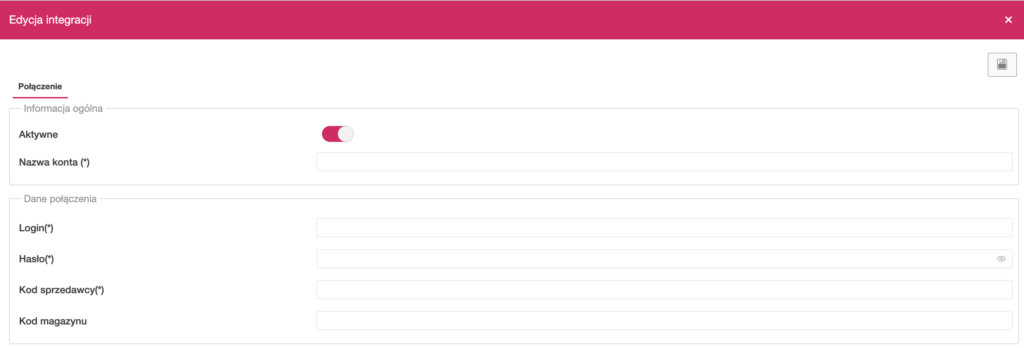
2. Complete the details in the Connection tab
The configuration form is divided into two sections:
General information:
- Active – enable the switch to activate the integration.
- Account name – any name identifying the Zadbano account in the system.
Connection details:
- Login – the login provided by Zadbano.
- Password – the login password (secured field).
- Seller code – a unique code identifying your company in the Zadbano system.
- Warehouse code – optional identifier of the warehouse assigned to the account.
You will receive all the above access details from your Zadbano account manager or the company’s support department.
3. Save the configuration
After completing all required fields, click the floppy disk icon in the top right-hand corner to save the data and activate the integration.