
DB Schenker account configuration in PowerHub
To activate the integration with the courier company DB Schenker in the PowerHub system, you must complete the required access details. Below you will find detailed step-by-step instructions.
1. Go to the Configuration / Integrations tab
From the list of carriers, select DB Schenker, then click Add or Edit if the integration has already been configured.
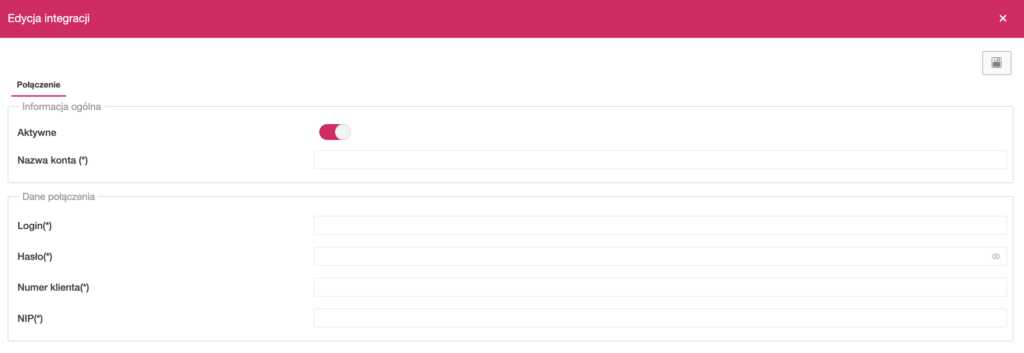
2. Complete the form in the Connection tab
The configuration form consists of two sections:
General information:
- Active – toggle the switch to activate the connection.
- Account name – enter a name identifying the DB Schenker account (e.g. DBS main).
Connection details:
- Login – user login for the DB Schenker system.
- Password – access password (hidden field).
- Customer number – individual customer number assigned by DB Schenker.
- VAT number – VAT number assigned to the customer account.
All the above access details are provided by your account manager or the DB Schenker customer service department.
3. Save the settings
Click the floppy disk icon in the top right corner to save the details and activate the connection with DB Schenker.
4. (Optional) Set shipment templates
After saving the details, you can go to the Shipment templates tab to prepare predefined settings for sent parcels.