
Configuring a DPD account in PowerHub
To activate integration with the courier company DPD in PowerHub, you need to configure the connection with their system using the form below.
1. Go to the Configuration / Integrations tab
From the list of available carriers, select DPD, then click Add or Edit if you want to update existing details.
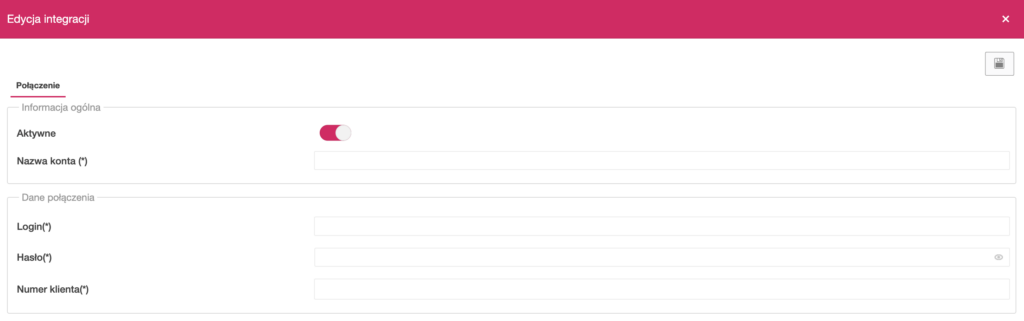
2. Fill in the details in the Connection tab
The form consists of two sections:
General information:
- Active – enable the toggle to turn on the integration.
- Account name – enter your own name identifying the DPD account, e.g. Main DPD.
Connection details:
- Login – user login for the DPD system.
- Password – password assigned to the account (masked field).
- Customer number – customer number received from DPD.
All access details will be provided by your account manager or DPD technical support.
3. Save the configuration
After completing all fields, click the floppy disk icon in the top right corner to save the details and activate the connection.
4. (Optional) Add shipment templates
In the Shipment templates tab, you can create default settings for DPD shipments – e.g. service type, parcel dimensions or additional options.