
The WooCommerce integration with PowerHub enables automatic order retrieval, product synchronisation and shipment handling directly from the PowerHub system. Below you will find step-by-step configuration instructions.
1. Preparing WooCommerce
To connect WooCommerce with PowerHub, you need to generate API credentials in the WordPress panel.
How to generate API keys:
- Go to WooCommerce → Settings → Advanced → REST API
- Click Add key
- Uzupełnij dane:
- Description – any name (e.g. PowerHub)
- Permissions – set to Read/Write
- Zapisz i skopiuj:
- Consumer Key
- Consumer Secret
These details will be required in PowerHub.
2. Adding the integration in PowerHub
Go to:
Configuration → Integrations → Add integration → WooCommerce
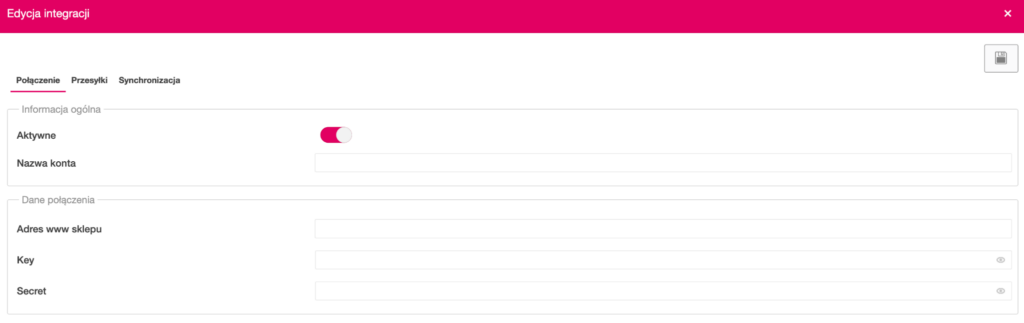
In the Connection tab, complete:
- Active – enable the integration
- Account name – any name for the integration
- Shop website address – full shop URL (e.g.
https://twojsklep.pl) - Key – Consumer Key from WooCommerce
- Secret – Consumer Secret from WooCommerce
3. Shipping settings
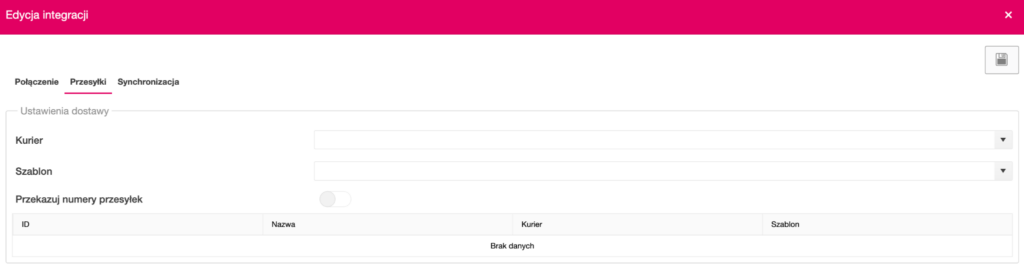
The Shipments tab allows you to configure how deliveries are handled:
- selection of the default courier
- assignment of the shipment template
- option to pass tracking numbers to WooCommerce
It is also possible to map delivery methods between WooCommerce and PowerHub.
4. Order synchronisation
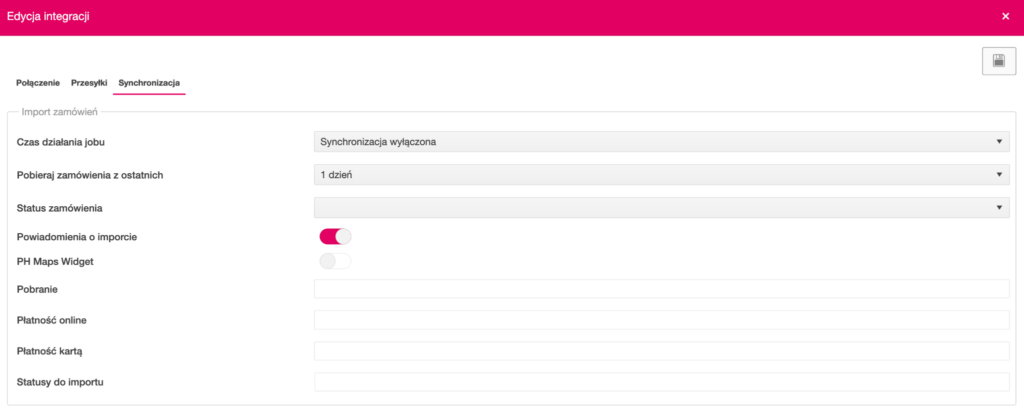
In the Synchronisation → Order import tab, configure:
- Job execution time – how often the system should fetch orders
- Fetch orders from the last – time range (e.g. 1 day)
- Order status / Statuses to import – which orders should be fetched
- Import notifications – optional notifications
Additionally, you can map payment methods:
- cash on delivery
- online payment
- card payment
Optional:
- PH Maps Widget – additional functionality related to delivery addresses
5. Returns synchronisation

In the Returns import section, set:
- Return retrieval frequency
- Time range
- Default status for new returns
6. Product synchronisation
The Product synchronisation section is responsible for updating data between WooCommerce and PowerHub.
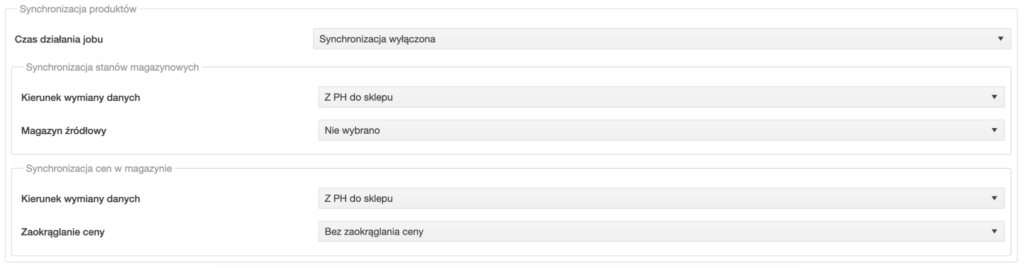
Stock level synchronisation
- Data exchange direction (e.g. from PowerHub to the store)
- Source warehouse
Price synchronisation
- Data exchange direction
- Price rounding
7. Saving the configuration
After setting all parameters, click the save icon in the top right-hand corner.
Make sure the integration is active – from this moment, data will be synchronised automatically according to the settings.
Most common issues
No connection to WooCommerce
- check the correctness of the store address (whether it contains https://)
- make sure the API keys are correct
- check whether the REST API in WooCommerce is active
Orders are not importing
- verify the configured statuses for import
- check the date range for retrieval
- make sure synchronisation is enabled