Creating an account in PowerHub takes only a few minutes and consists of 3 simple steps. Below you will find instructions on how to complete the entire process correctly.
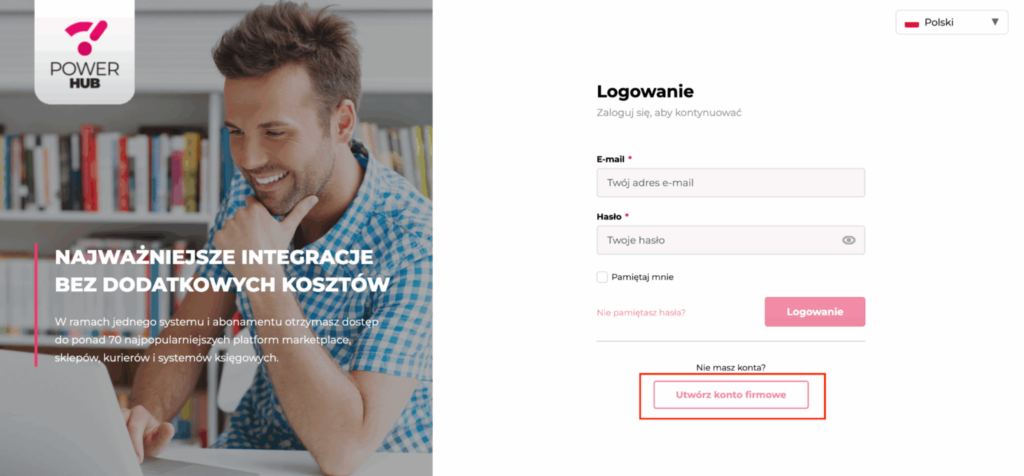
Step 0: Go to the registration page
Step 1/3: Company information
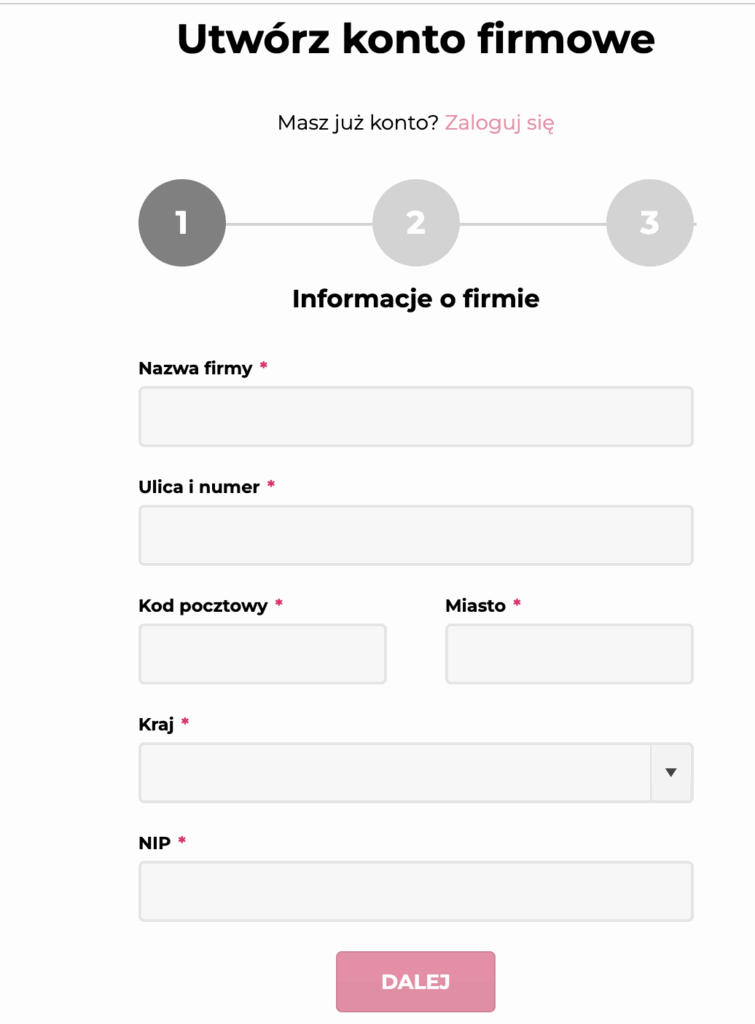
In the first step, fill in the company details:
- Company name,
- Street and number,
- Postcode,
- City,
- Country (select from the list),
- VAT number.
Click Next to proceed to the next stage.
Step 2/3: Administrator information
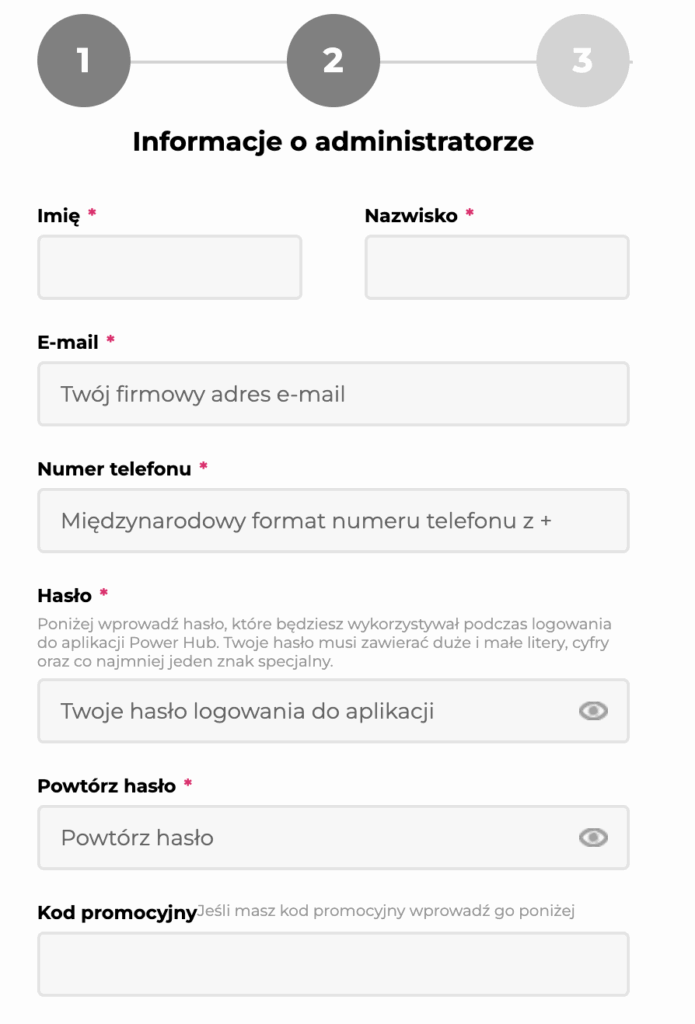
In the second step, fill in the account administrator’s details:
- First name and Last name,
- Email (preferably a business one – the activation message will be sent there),
- Phone number (in international format, with “+”)
- Password (Your password must contain at least 8 characters, upper and lower case letters, numbers and at least one special character (, . ! _ # $ @)
- enter it again in the Confirm password field.
- Promotional code (applies only to Meest customers and is required. You will receive the code from your Meest account manager – if you do not have it, please contact your Meest account manager).
Finally, tick the required checkboxes:
- acceptance of the Privacy Policy,
- acceptance of the Terms and Conditions/License Agreement.
Marketing consent (to receive email communications) is optional.
Click Next to submit your registration.
Step 3/3: Your account is almost ready (email activation)
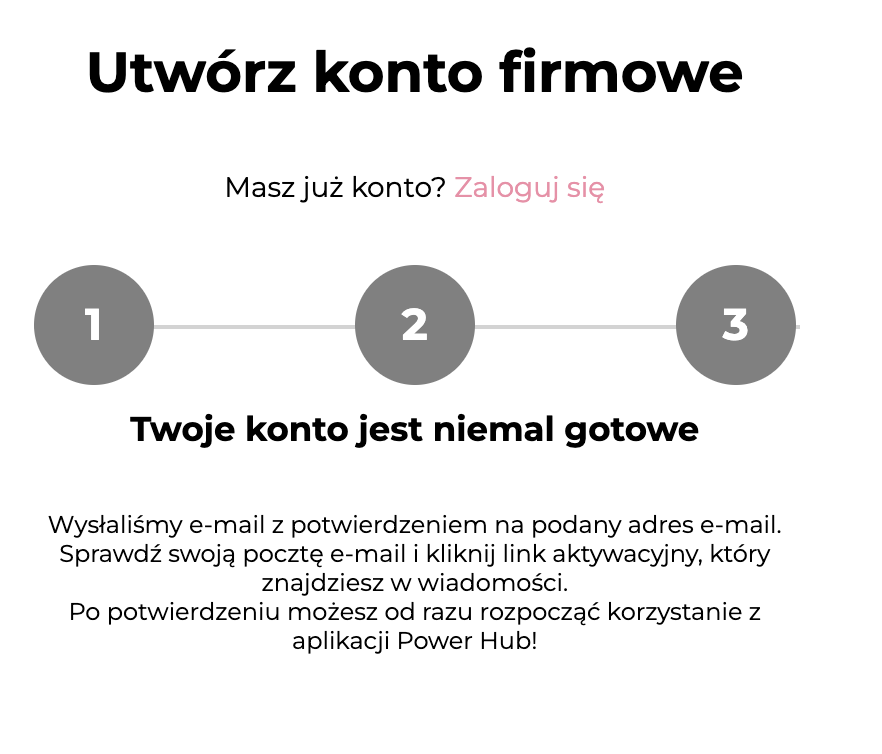
After submitting the form, you will see the message Your account is almost ready
The system sends a message to the provided email address – to complete the process:
- Open your email inbox.
- Click the activation link in the message.
Only after clicking the link will the account be activated and you will be able to use the PowerHub application.
Most common issues (quick solutions)
- I do not have a promotional code → ask your Meest account manager for it (the code is required for Meest customers).
- I am not receiving the activation email → check your SPAM folder and the correctness of the email address; try again after a few minutes.
- I cannot log in after registration → the account only becomes active after activation via email and setting a password.